What is the Budget Module, and when do I use it?
The Budget Module builds projected cost data bottom-up. It appears when the Data type on Mode & Purpose is Budget and you choose I need to create one.
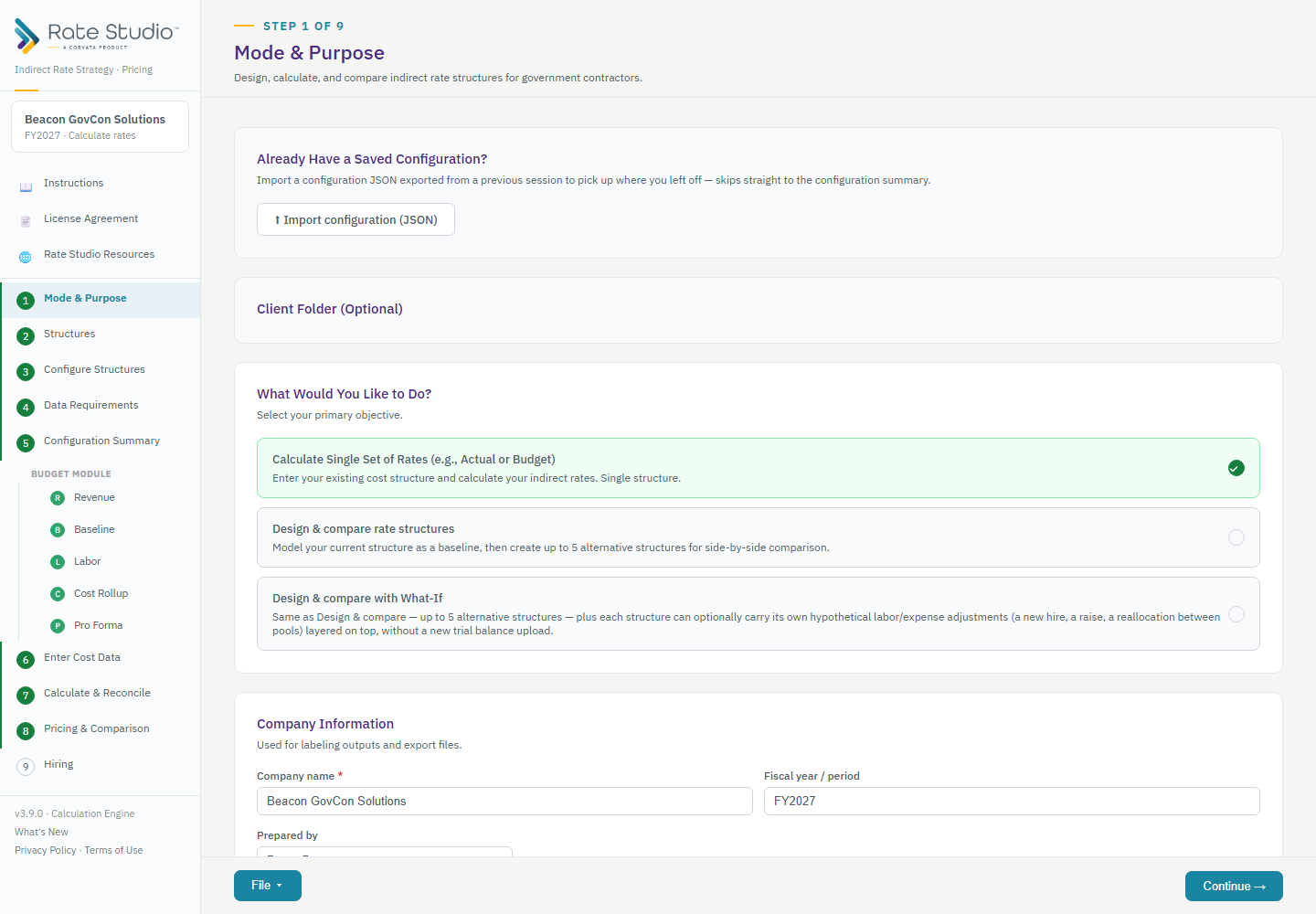
The six screens
They appear in the sidebar between Configuration Summary and Enter Cost Data:
- Chart of Accounts: the accounts the budget is built on (see How do I set up my chart of accounts?).
- Budget: Baseline (optional): prior-year actuals and current-year-to-date data as reference numbers.
- Budget: Revenue: projected revenue by overhead pool, from backlog, probability-weighted pending proposals and other filler work.
- Budget: Labor: Setup, Employees, Overtime and GL Overrides (see How do I set up labor rates, benefit classes and paid absences? and How do I import employees and allocate their time?).
- Budget: Cost Rollup: one tab per pool, where you project each pool's expenses by account. Each pool tab reconciles to the calculation engine.
- Budget: Pro Forma: a preview of the resulting rates and margin, with a cost-trend comparison against your baseline. Continuing locks the budget in as the cost data for Enter Cost Data and Calculate & Reconcile.
If you already have a budget
Choose I have a completed budget instead and load it as a trial balance in Enter Cost Data. Everything else works exactly as it does for Actual data.
Exporting the budget
You can export the finished budget to Excel or CSV for your accounting software (see How do I map GL accounts and export the budget?).
If this doesn't work: if the Budget Module screens are missing, check that Data type is Budget and that you chose "I need to create one" (see How do I set up a new file?).
Watch: Chart of Accounts, the first Budget Module step
Full guide section: Budget Module
Related: How do I set up my chart of accounts? | How do I map GL accounts and export the budget? | How do I set up a new file?