How do I map GL accounts and export the budget?
Map every budget item to a chart account, then export. The file is meant for loading into your accounting software.
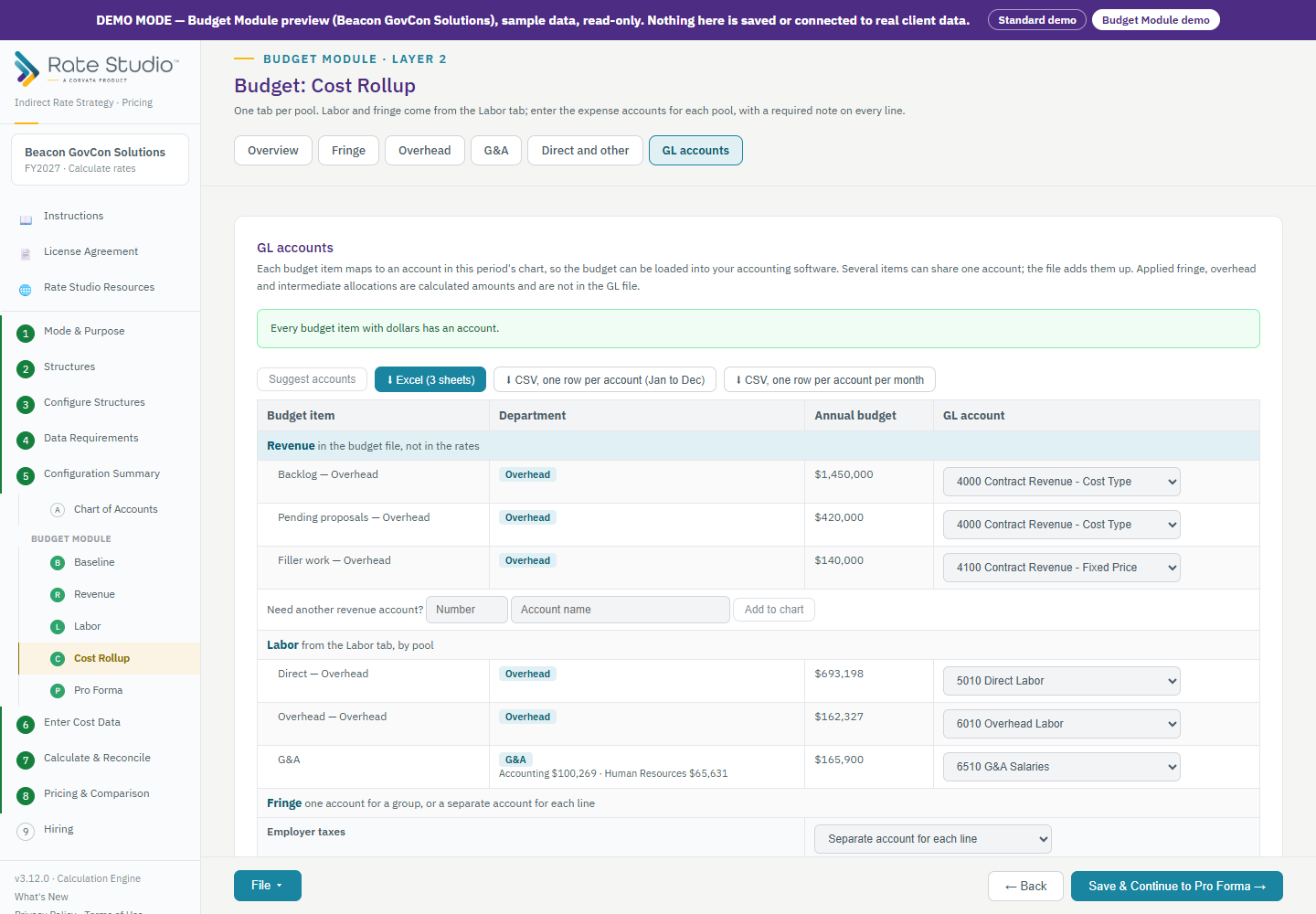
Steps
- Open the GL accounts tab on Budget: Cost Rollup. It lists every budget item: revenue, labor by pool, fringe and your expense lines.
- Choose Suggest accounts for a first pass. Rate Studio matches labor, fringe and expenses to your chart. Review them and change any that are wrong.
- Give the remaining items an account. Several items can share one account, and the file adds them up. Fringe can go to one account or to a separate account for each line.
- Export. Export stays off until every item with dollars has an account, and the file ties out to your budget. Rate Studio shows whether they tie.
- Export to Excel (Budget, Rates and allocations, and Notes sheets) or to CSV, either one row per account for the year or one row per account per month.
Good to know
- Months are even, with any rounding remainder in December.
- Calculated amounts, such as applied fringe, overhead and intermediate allocations, are not in the file, because they are not accounting entries.
- There are no formats for specific accounting software. You load the file with your own import tool.
- The export is also in the File menu on Cost Rollup and Pro Forma.
If this doesn't work: see The budget export is disabled if the export is disabled.
Watch: Export the budget, from 0:10
Full guide section: Budget Module
Related: How do I set up my chart of accounts? | The budget export is disabled | How do I build the Cost Rollup by pool?