How do I read the Rate Summary?
Open Calculate & Reconcile and read the Rate Summary at the top. Rate Studio calculates as soon as the screen opens.
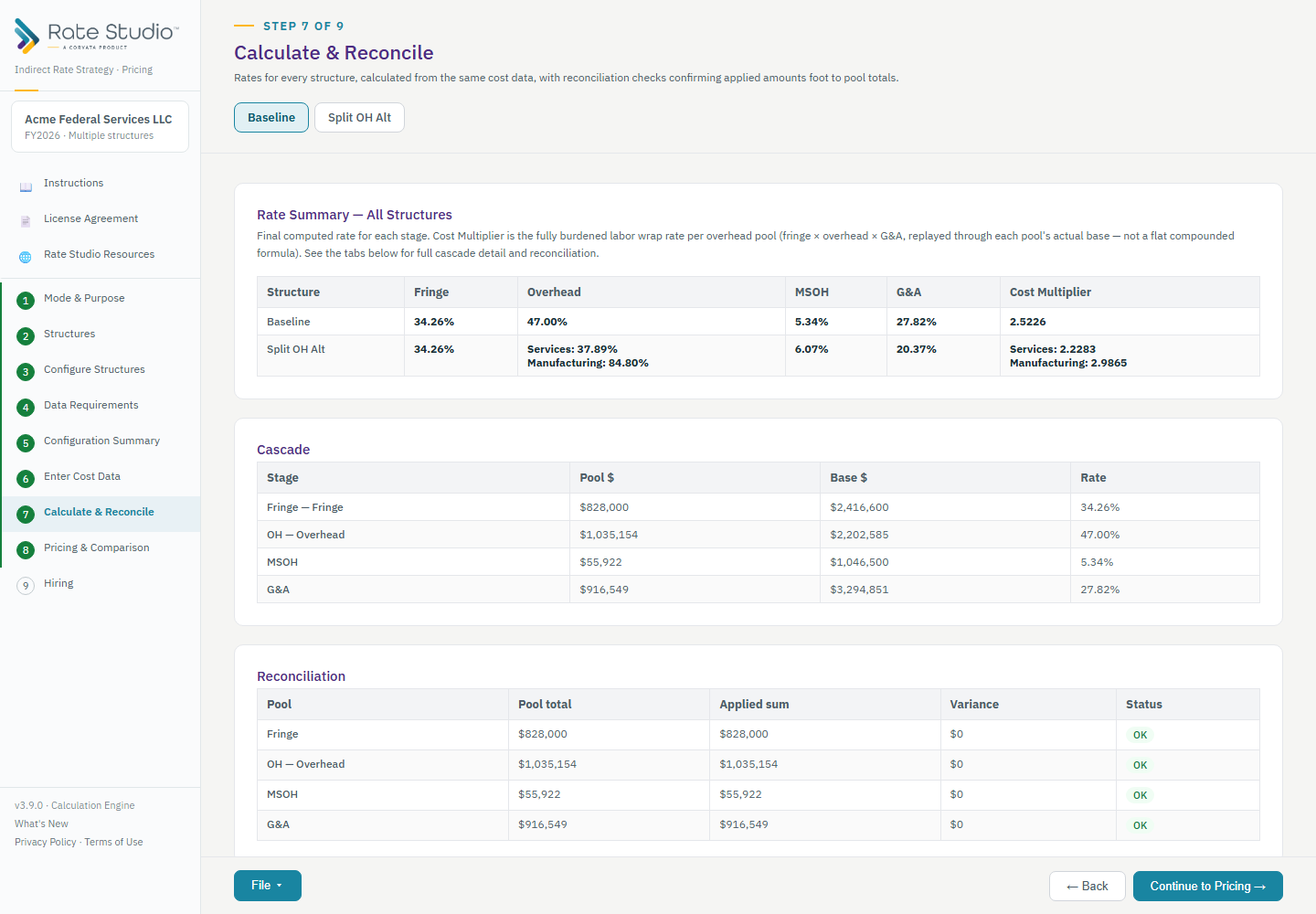
Steps
- Select Calculate & Reconcile in the sidebar, or choose Continue from the cost data screen.
- If something your structure needs is missing, a Data Sufficiency card appears instead and lists exactly what to add. Nothing calculates until that card is clear (see Calculation is blocked: what data is missing?).
- Read the Rate Summary. It shows each rate in order: fringe, then each overhead pool, then MSOH if you use it, then G&A. The order matters, because each rate feeds the next. With more than one structure, every structure is shown side by side.
- Use the detail tabs below to see every stage of the cascade. For each pool you see the pool dollars, the base dollars and the resulting rate. Look inside an overhead pool to see what it holds: labor, applied fringe, applied intermediate cost and expenses.
Next
Each pool also has a reconciliation (see What do the reconciliation checks mean?). The cost multipliers are shown here too (see What are cost multipliers?).
If this doesn't work: if a red message appears above the Rate Summary, see 'Cost data not used by this structure' red message.
Watch: Calculate and reconcile, from 0:45
Full guide section: Calculate & Reconcile
Related: What do the reconciliation checks mean? | What are cost multipliers? | How do I export Excel and PDF reports?